Video: 2 minute intro; Tutorial: Worked examples; Help: Contents
Showing posts with label new features and bug-fixes. Show all posts

May 2, 2010

Attention bloggers: Embed bCisive Online maps in your blog posts

You can now publish a bCisive Online map, making it available to the whole world to view, or just to members of your site.  It's basically a YouTube for your maps.

For example, here's a map based on this editorial in the New York Times:


Unlike a screenshot, you can pan, zoom, and hide and show sub-branches of the map.

So give it a try to:
  • make complex discussions easier to follow
  • add visual interest to your blog
Note: You can also embed maps on other html web pages (not just blogs), or instead of embedding link directly to a web-page that hosts the map.

Mar 11, 2010

Click-to-Skype is here

bCisive Online now has simple (and easy to use) Skype integration for two-way voice, video and chat.  Having a voice channel such as Skype is ideal for getting the most out of real-time collaboration with bCisive Online.


The click to Skype button also appears next to Skype-enabled occupants within a space.

How to tell bCisive Online that you are on Skype
By adding your Skype name to your profile, you can allow other users to see when you're available to Skype, and call you with a single click.  Simply click on your name in the People section (above) and add your skype name to your profile:


Notes
  • If Skype isn't running on your computer when you click-to-Skype that's ok: it will launch automatically
  • You can use your Skype settings to control whether people can see that you are online.
  • If you try to initiate a conference by clicking on a second person's Skype button, you don't get a three-way conference call (yet) -- perhaps Skype will help us out with this!

Nov 17, 2009

Controlling access to Spaces, plus renaming and deleting

To control who has access to a space that you own, or rename it, or delete it, click Manage from the Spaces area of the home page:


Only the spaces that you own will have a Manage link.

Details
In an organizational setting, not everyone should have access to every Space. To this end we have introduced a new set of roles to bCisive Online. In any given space you will be exactly one of the following, in increasing order of power:
  1. Denied: The Space will not appear on your Spaces page, and you cannot access it
  2. Viewer (coming soon): You can view the space, but cannot edit it
  3. Member: You can edit the space, request control, and pass on control
  4. Moderator (coming soon): Like a member, plus you can grab control, and you can invite guests (non-site-members) temporarily into the space
  5. Owner: Like a moderator, plus you can set the level of access of other site members
When you create a space you will automatically be appointed its Owner.

From a space's "Manage" page


you can:
  • restrict and limit access of site-members to the space, 
  • control guest access to the space
  • rename* the space, and 
  • delete the space (not shown)
  • set a default level of access for new users (members) of the site

Notes and tips:
  • Appointing someone else a co-owner of the space facilitates hand-off.
  • Owners can demote other owners
  • Making everyone except the owner of the space a Viewer effectively freezes the space.
  • Renaming the space does not kill hyperlinks to the space, but deleting it does

Save snapshots of the workspace

Although bCisive Online has periodic auto-save there are times when you want to go back to an earlier version of the workspace. Saving allows you to do just that:
  • Before exiting a Space while in control, to keep any changes
  • In case you lose work by accident, error, or technology failure
  • To replay the history of a discussion

When you click the "Save" button the current state of the workspace is saved and stamped with current date-time (for now the time at the central server).


To go back to an earlier saved version of the workspace, click on the "History" tab and click on the "Revert To" button to call up the old version.  Tip: Consider Saving the current version first!

Wishlist functionality:
  • Text comments when saving, for a more informative history
  • Graphic preview before reverting 

Oct 5, 2009

Bigger workspace size

Until now the workspace width expanded with the browser width, but not the height, which was fixed. We've removed this limitation to allow really big workspace sizes:

A bCisive Online workspace on a big screen: Click for full resolution

Above a minimum size, the workspace will stretch and squeeze with your browser. So if you have a large screen, you can now make use of all that real-estate.

Note: Depending on your web browser, you may need to clear your cache and reload a Space page for this upgrade to take effect.

Sep 23, 2009

Single login is here

Until today, you were required to create a new login account for each bCisive Online site you created or were invited to access. Confusing, and cumbersome, I'm sure you'll agree.

We've now replaced this with a single login system: once you've set up an account for your email address, you can use it to access any number of sites. (At this stage you still need to log into each site separately, but you'll now use the same password.)

Existing users:
  • If you only had the one account, you will now be able to use it to log into other bCisive sites in the future.
  • If you previously had more than one account, we have kept the password for the first account you created and removed the rest. (If you need a password reminder, just let us know.)
As yet, there's no 'My account' management screen where you can see a list of the sites you have access to through your single account, but that's on the wishlist.

Sep 22, 2009

Accounts, accounts everywhere

"...but I thought I already had a bCisive Online login. Why, when I head over to my friend's bCisive Online site, am I being asked to set up a new account?"

Bear with us! We're the first to admit that the login system still needs work. Here's how it works at the moment:

bCisive Online site
This is the private area that you create for yourself or your organization, or are invited to join. Each site is accessed via a different subdomain, e.g. http://abccorp.bcisiveonline.com.

Spaces
Within each site, there can be any number of Spaces, each containing an embedded bCisive workspace where you can create a map. The site owner or anyone invited to access the site can create a Space. Click on the Spaces tab for a list of the Spaces in the site.

Login accounts
An account is your personal login information, and consists of the name, email address and password you enter when you create a site or accept an invitation to somebody else's.
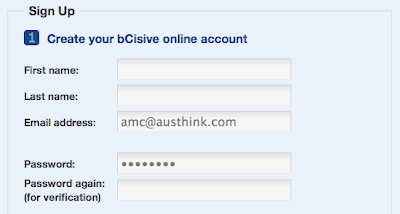

Here's the rub. Currently, there isn't a global/single sign-on facility, although it is coming in the near future. At the moment, you need to create a new account for each bCisive Online site you wish to access.

-- Update: we've now implemented a single login. Read more here.

Accessing other people's sites
The only way to access a colleague or friend's site is to click the link in the invitation email they send you.
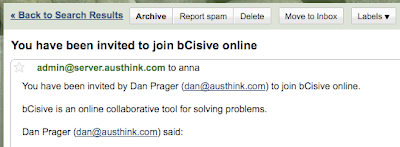

If you do this, you will be prompted to set up an account for that site, and then you'll be taken straight into the site.

Just going to the site's URL and trying to login using an account you've previously set up won't work, because that's the account for a different site.

"Wouldn't it be easier just to have one global login account to access all of my bCisive Online sites?"

Yup. We agree. We're working on it! -- Update: it's done. Read more here.